

Choose how your video begins
Build a scene from words, animate a photograph, or use an effect prompt as a starting point.
Text to video AI generator
A text-to-video generator builds a moving scene from your description. Use it when you want to create an environment or action without preparing a first-frame image.
Image to video AI generator
Image-to-video uses your photo as a first frame, then generates movement from the prompt. Start with a clear subject and describe what should happen next.
AI video effects
Find a shot worth trying. Start with an effect prompt, read its workflow notes, and bring your own photo or scene.
A small lab for bigger ideas
Explore editable prompts for specific shots. Each effect page explains the input, workflow, and things to check in your result.
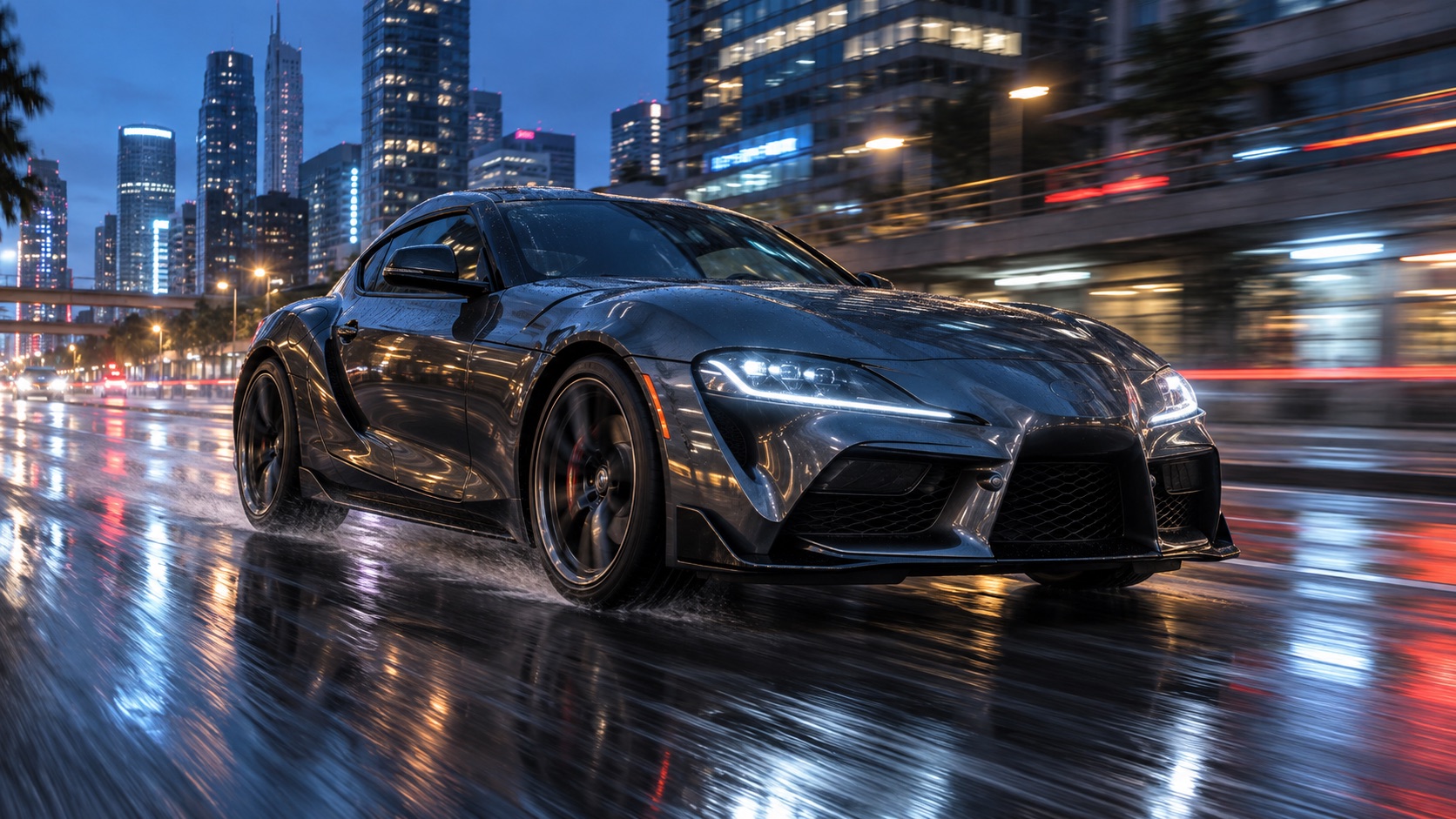 Vehicle transformation
AI car video generator
Turn a vehicle photo into a transformation shot. Adjust the car, location, camera, and motion in the prompt.
View effect & workflow Fashion transition
AI ceiling fan outfit change
Try a fixed overhead shot where a passing fan blade hides an outfit change. Inspect identity and transition timing.
View effect & workflowFrom a prompt to a moving scene
Demo footage supplied with the site template. These clips illustrate ideas; they are not results from your current settings.
How to create an AI video
- 01
Describe one clear shot
Name the subject, action, setting, and camera movement. Start with a short scene before adding multiple transitions.
- 02
Choose inputs and settings
Add reference media when your scene needs it. Choose a supported model, duration, and resolution, then review the displayed credit cost.
- 03
Review and keep your result
Inspect movement, faces, hands, and scene continuity. Download the result or find it again in My creations. Change one detail at a time when iterating.
Two models, one workspace
The generator currently offers Seedance 2.5 and MiniMax H3. Available inputs, durations, and resolutions depend on the selected model. Neither is automatically ranked as the best for every effect.
Know the credit cost before generating
All models use one pricing policy. Credits depend on model, resolution, fixed output duration and verified reference-video duration. The charge is shown before submission. Provider-confirmed failures return reserved credits; successful results retain the charge.
Questions before your first AI video
What can I create with AI Effect Lab?
Generate short videos from a text description or a reference image. You can also start with AI car and ceiling fan outfit change effect prompts, then edit them for your scene.
Is AI video generation free?
Browsing effects and editing prompts does not use credits. Submitting a generation requires an account and enough site credits. The current cost is shown in the generator before you submit.
Which AI video model should I choose?
Choose a model that accepts your inputs and desired settings. Seedance 2.5 and MiniMax H3 are available here. Compare short results for your own scene instead of assuming one model is best for every task.
Why can a generated video differ from an effect preview?
An effect preview is an example, not a guaranteed output. The source workflow may use another model, reference video, or multiple steps. Your inputs and prompts also affect identity, motion, and timing.
Where can I find my generated videos?
Signed-in users can find saved task records in My creations. Keep a local copy of completed videos because provider-hosted result links may expire.