
AI Time Freeze Video: Hold a Pose as the Scene Moves
Keep a person still while one part of the surrounding scene moves.
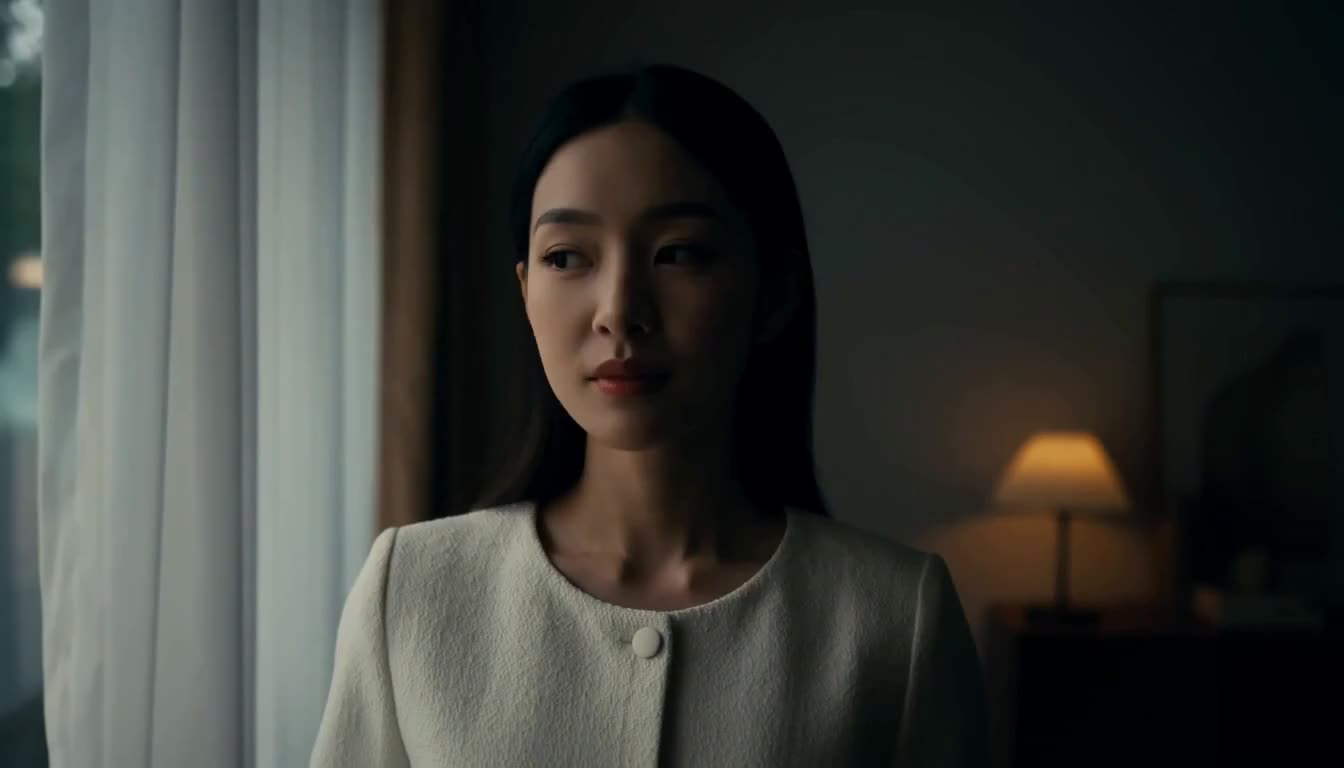
Create your video
Checking your sign-in…
Choose one JPG, PNG or WebP photo up to 10 MB; sign in before uploading.
Seedance 2.5 · 720p · one photo as the first frame. The server quotes the selected model, quality and duration; no reference-video charge is added.
This template requests silent output. Add your own or licensed audio after downloading if needed.
Read the English motion prompt
Start from the supplied first frame. Keep the same single foreground person, face, hair, skin, body proportions, clothing, accessories and setting. Hold the existing body pose like a staged mannequin challenge, with no intended walking, turning, speaking or new gesture. Use a steady fixed camera and one restrained motion in an already visible background element, such as a gently moving curtain, falling rain or distant traffic. Keep the background behind the person and keep the face and silhouette readable. Optional direction may select only one existing background motion; it must not replace identity, pose, clothing or scene. Maintain the pose and calm composition through the ending. No orbit, dolly, roll, cut, added crowd, duplicate person, separate ending frame, foreground occlusion or invented text/logo. A generated pose can vary; do not claim pixel-locked masking, physical time control or measured motion. No audio, music, dialogue or voice.
Extra direction and the sound preference are added at submission. Model guidance does not guarantee frame-by-frame matching.
Estimated credits:35 credits
Sign in to createCreate a mannequin-style AI Time Freeze video from one photo. Prepare a clear pose, direct gentle background motion, check credits and recover your saved task.
A Time Freeze clip contrasts a held human pose with a moving environment. Use it for a portrait introduction, a staged mannequin challenge or a quiet visual pause. This photo-to-video template requests restrained background motion with a steady camera; it does not freeze a section of an uploaded video.
Prepare the inputs
Use one JPG, PNG or WebP photo with a single person, a readable pose and space around the body. A medium or wider view with a visible curtain, rain or distant traffic gives the scene something to animate. The photo is the actual opening frame: face, hair, body, outfit, accessories and setting start from it. No separate identity, mask, ending image or motion video is supplied.
How to make the video
Sign in, upload the photo, then choose the model, quality and duration. In the optional direction, name one background movement, such as a curtain drifting behind the person. Keep the body pose and camera still. Check the server quote, submit once and keep the task number. Refreshing queries the saved task rather than creating another generation.
Review the result
Watch the full clip. Check the face, hands, feet and clothing for unwanted motion, then confirm that the background moves without covering the person. A generated held pose may still show small changes; this is not a pixel-locked cutout or a frame-accurate video edit.
If the body moves too much, use a simpler pose and reduce the background action. Remove walking, turning, talking and camera-move instructions. If the background stays still, choose a photo with a distinct background element and describe only that element moving. Inspect the result before saving or sharing.
Common questions
Is this a photo template or a video freeze-frame editor?
It generates a new clip from one photo. The person is asked to hold their pose while the scene moves. It cannot freeze an exact timestamp in an uploaded video, preserve a source soundtrack or guarantee an unchanged foreground.
What is the difference from slow motion or an orbit shot?
Slow motion slows the action; an orbit moves the camera around a subject. This template asks for a still foreground pose and steady camera, with one limited background movement instead.
What happens after I submit?
The saved task can be queued, processing, completed or failed. Use its task number or private creations page to check it. Refreshing does not submit another generation; confirmed failures follow the existing refund rules.
Check the held pose, background motion and ending before saving. Results vary with the photo and model.
Read this page as Markdown